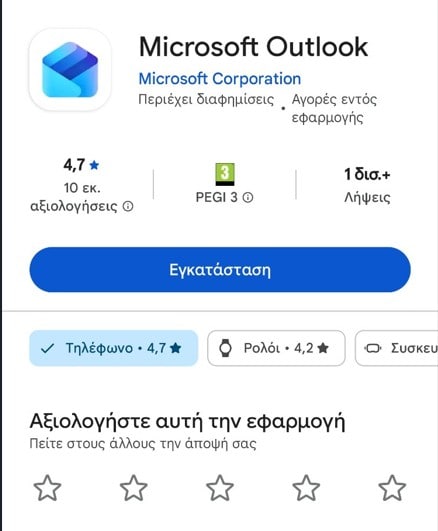
Step 1 — Install Outlook
Download and install Microsoft Outlook from the Google Play Store (Android) or the App Store (iPhone).
Step 2 — Add your email account
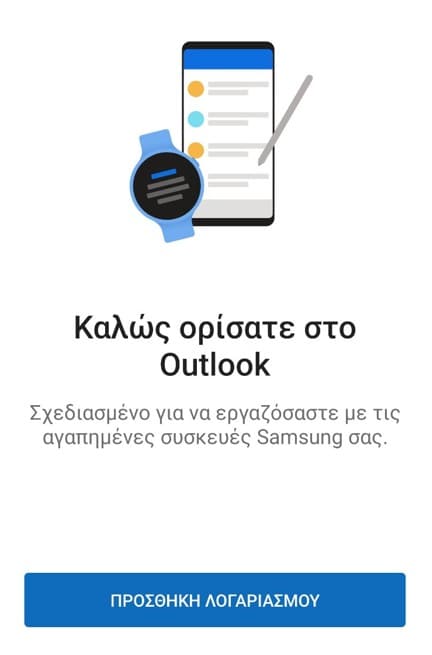
Open Outlook and tap Add Account.
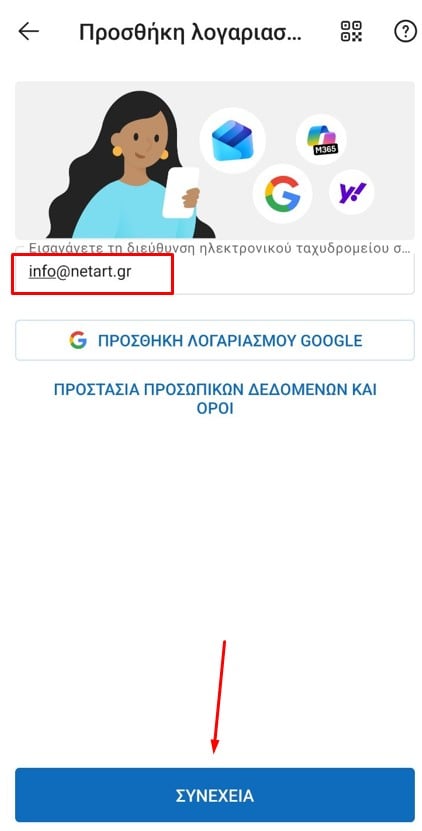
Enter axionit@t1-physio.de and tap Continue.
 When prompted to select an account type, choose IMAP.
Step 3 — Enter your account details
Enter your email password and the display name you would like recipients to see.
Tap the checkmark in the top-right corner to complete the setup.

If prompted, tap Maybe Later to skip adding another account. Allow notifications if you would like to be notified of new emails.